Wednesday, February 27, 2019

How to Permanently Delete Contacts from iPhone 2019


Alternative Methods to Delete Apps from iPhone

If using iMyFone Umate Pro doesn't interest you when it comes to learning how to delete apps on iPhone, there are other options available.
Tap on "X"

This is the most basic option that there is. To use the "X" to delete apps on your iPhone, follow the steps below.

Step 1. Tap and hold the app that you want to delete until it begins to shake.


Step 2. Tap on the "X" at the top-right of the app that you want to delete.

Step 3. Select "Delete" from the pop-up, and repeat this with all the apps that you want to remove.

Note

However, there are some disadvantages to doing this.


Unable to delete multiple apps at once.


Very time-consuming if you're trying to free up a lot of storage space.


Can't access or delete junk files or app data.
Using the "Settings" App

Another option that you have is to delete apps on iPhone using the "Settings" app. Again, while this isn't preferable, it's an option.

Step 1. Unlock your iPhone and tap on the "Settings" app.

Step 2. Swipe down and tap on "General > iPhone Storage".

Step 3. Select the app that you want to delete and then tap on "Delete App". Repeat with any other apps that you want to delete from your device.


You can also use this method to see exactly how much storage each app is filling up and thus, remove any large unnecessary apps.

Note

One of the benefits of doing this to delete your apps is that you can also delete the app data. However, it isn't without its downsides. This methods still doesn't allow you to delete apps in bulk.
Factory Reset

Lastly, you can choose to factory reset your iPhone. This is another time-consuming task although if you're interested in deleting all of your apps on iPhone and you have a lot of them installed, this may be preferable.

Step 1. Open up the "Settings" app and go to "General > Reset".

Step 2. Tap on "Erase All Content and Settings" and enter your passcode.

Step 3. Your iPhone will now begin the factory reset process and after a few minutes, you'll be shown the iOS setup menu.


Note

Of course, by using this method, you are also removing your personal data as well; this isn't the only con though.

Overly complicated for simply deleting apps.

Unless you back up, you will lose all of your personal data.


iPhone settings are reset.
Also Read:Top 8 iOS Emulators To Run iOS Apps On Windows PC & Laptop in 2019
Also Read:12 Best Painting & Drawing Apps for iPad and iPad Pro in 2019

Sunday, February 24, 2019

How to Use iTunes Tag Editor 2019


How to Use iTunes Tag Editor

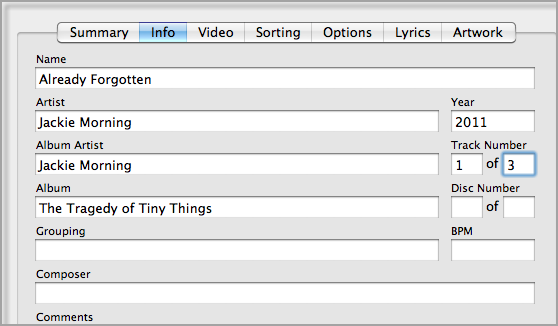
If you want to edit your MP3 song information, you can follow the following steps to know how to edit songs on iTunes.
To Edit the Album Information

A: Drag the songs to iTunes.

Step 1: Find the particular song you want to edit.

Step 2: Select all the songs on the album.

Step 3: Right click and select the “get info” button.

Step 4: Edit the artist, album artist, year and album only fields as desired and save by clicking OK.


To Edit Song Information

Step 1: Observe step (A) above.

Step 2: Select a song, right click and go to the “Get info” area for each song. Also, you can edit the “Name” field if you want to edit the track title, track number, etc. then click on the “OK” button to save.

Step 3: Do this for every song you want to edit the song information.Sponsor ads:

Gihosoft Free iPhone Data Recovery:https://www.gihosoft.com/iphone-data-recovery-free.html

Gihosoft iPhone Data Recovery Free

Free iPhone Data Recovery Software for Windows/Mac

Recover up to 12+ types of files, including contacts, SMS, photos, WhatsApp, Viber, notes, etc.

Restore lost data from iOS devices directly or from iTunes and iCloud backup

Recover iPhone data lost due to iOS upgrade/jailbreak, accidental deletion, device lost or broken

Support all the latest iPhone, iPad and iPod Touch

Both Free and Pro version.

If you lost data after you updated to a new iPhone, you can always use Gihosoft iPhone Data Recovery to get the data back from the old iPhone or backup.You may also like: iphonerecovery.com

If you use android phones, please choose Gihosoft Android Data Recovery.

With Gihosoft Android Data Recovery, no longer afraid of data loss!

Must read:Youtube video downloader for pc

Gihosoft RePicvid Free Photo Recovery Software provides a free photo recovery software for windows to help users recover the deleted or lost photo for free.

Jihosoft Android Data Recovery: the best Android Data Recovery software for Windows and Mac to recover deleted contacts, messages, photos, videos, WhatsApp and etc from Android devices.Tips:How to transfer messages from iPhone to iPhone

jihosoft Free iPhone Data Recovery

Wednesday, February 20, 2019

How to Check The Data Does Facetime Use 2019


How to Check The Data Does Facetime Use

Here’s how you can check how much data was used by an individual facetime calls.

Step 1: On your iPhone, open the Facetime and tap on the ‘Recent’ option. The option is at the bottom of the page.

Step 2: Look for the call you want to check its data usage from the list of recent calls. Once you do that, tap on the info button denoted as ‘i’ to the right of the video or call, and you’d see the data usage for it.

There you will find how much data does Facetime use exactly during each call and even the time and date the call was placed.


How to Reset Statistics for Cellular Data

If you are a heavy data user and are concerned about charges that might occur if you reach your data cap, then it might be useful to monitor statistics of your cellular data usage.

You will need to occasionally reset your iPhone cellular data statistics since they are a running total. This is to help you have a clearer view of how much data you are using each month.

Step 1: Tap the settings icon

Step2: Select the cellular option

Step 3: sScroll right to the bottom of the page and tap the reset statistics button

Step 4: Tap the ‘Reset Statistics’ button in red again to confirm that you want to reset your statistics


Free up and Speed Up iPhone Using an iPhone Cleaner

The iPhone is a pretty user-friendly device, but iOS still gets clogged up over time with memory logs and unwanted files – this can slow down your iPhone.Sponsor ads:How to Turn off Tumblr Safe Mode without AccountMust Read:If you lost data after you updated to a new iPhone, you can always use Gihosoft iPhone Data Recovery to get the data back from the old iPhone or backup.

Gihosoft Free iPhone Data Recovery:iphonerecovery.com

If you use android phones, please choose Gihosoft Android Data Recovery

Tuesday, February 19, 2019

How to Save Viber Messages from Your iPhone 2019


Having a backup of your Viber messages can mean the difference between losing them completely, or being able to recover them if you do accidentally delete them. While there are several ways to back up your Viber messages including on iCloud and iTunes, it is more important to be able to have more than one backup for your messages.

This article will focus on alternative ways to back up your Viber messages from iPhone including via email and by saving them to your computer. The methods below also work on iOS 11.
1 Create an Email Backup of Your Viber Messages

Backing up your Viber messages to your email is probably one of the best ways to keep them safe and prevent loss. It is also a great way to keep important messages that you don’t want hanging around on your phone where anyone could gain access to them.

The following is a step by step tutorial to help you do that easily.

Step 1: Open the Viber app and then select “More Options.”

Step 2: Select “Settings” and then “Calls and Messages”

Step 3: Choose “Email Message History” and wait for the backup to be created. Once it is created, select the email application you would like to use and then send it to yourself or any other email address.


2 Save Viber Messages from Your iPhone to your Computer

Another great way to backup your Viber messages is to save them to your computer. This method is easy to do when you have the right tool and keeps the messages safe and accessible when you need to restore them to the device or just refer to them.

To save Viber messages to your computer quickly and conveniently, you need a third-party tool that will easily extract all the messages and their attachments to your computer. One of the best tools for the job is iMyFone D-Back or iMyFone D-Back for Mac(compatible with iOS 11) and the following are some of the features that make it the best.

Sponsor ads:How to Turn off Tumblr Safe Mode without AccountMust Read:If you lost data after you updated to a new iPhone, you can always use Gihosoft iPhone Data Recovery to get the data back from the old iPhone or backup.

Gihosoft Free iPhone Data Recovery:iphonerecovery.com
If you use android phones, please choose Gihosoft Android Data Recovery

Report: 16-inch MacBook Pro to Be the First Mac with Scissor Switch Keyboard

Recently a report detailed that Apple will be bidding adieu to butterfly keyboard mechanism on its MacBook and instead opt for Scissor Sw...